Remote device & content management tool
I led the end-to-end redesign of the entire app. Based on research I had created a design strategy, which enhanced usability of app features. I developed a scalable, accessible & consistent new Design System in Figma. Revived mobile version.
Skills
Desk research
Competitive analyse
Deep user interview
Survey
Workshop
Product strategy
Prototyping
Testing
Deliverables
Clikable Prototypes with instructions of implementation
Files with animations
Design System in Figma
Files with research outcomes
Role
UX / UI Designer
Company
Nanovo
(2024 - 2025)
Outcomes
The redesign has led to noticeable improvements in key metrics, although there are still areas for development.
Overview
Signio had strong potential, but outdated design and poor usability held it back.
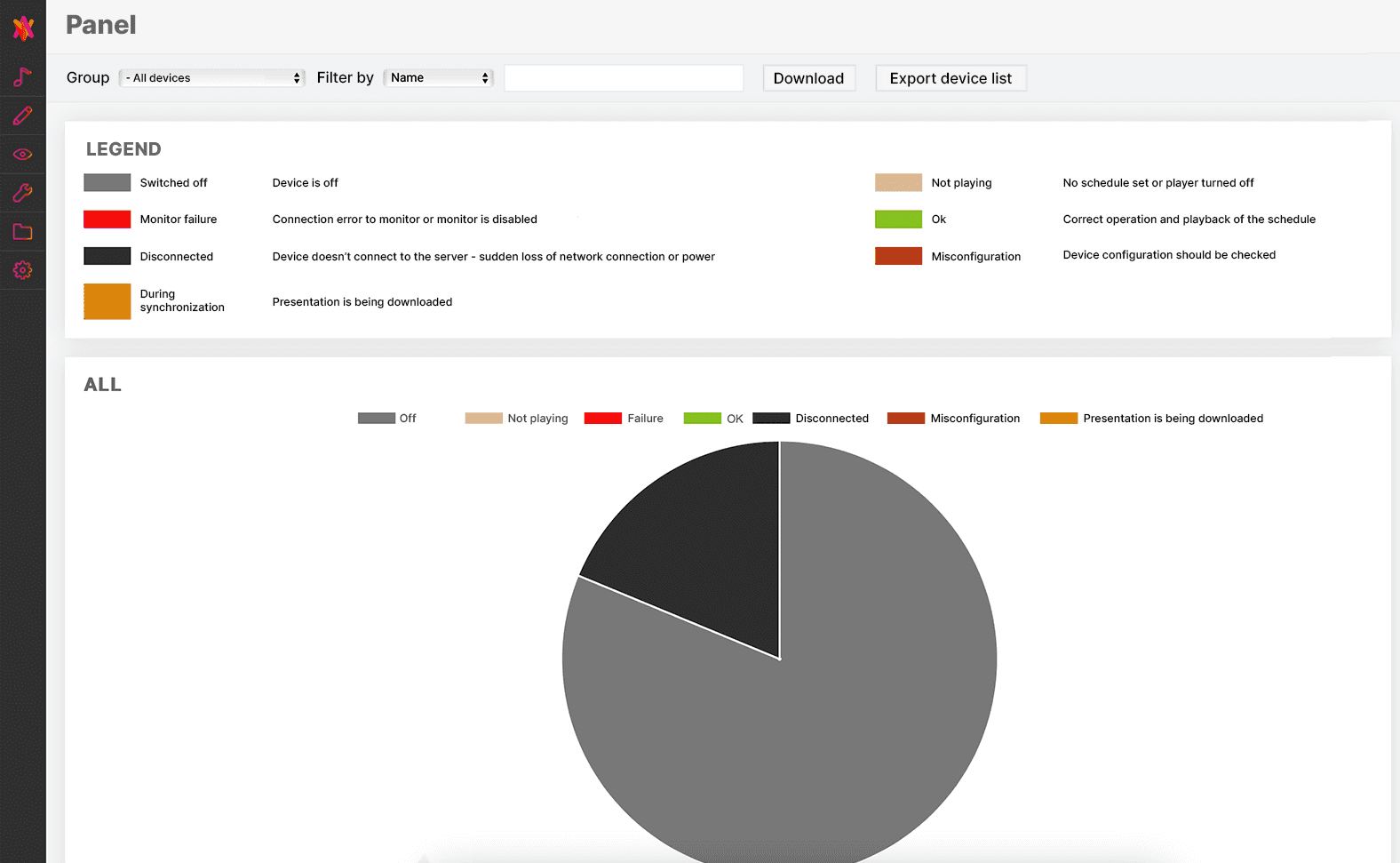
Signio was designed for businesses to control devices and the content displayed on them (e.g., other apps, videos, audio, images, and presentations). Overall, when I first reviewed the app, I saw strong potential for improvement. It was visually outdated and structurally confusing, even for users who had been using it for a long time.
The mobile version wasn’t responsive and was overwhelmed with features that were not displayed correctly. As a result, users did not pay much attention to it, which I later identified as lost potential.
Before redesign
Discovery
Planing the ux-review
I started with a planing of UX-review, to uncover opportunities for improvement. Through usability testing and complementary research methods, I identified key pain points and turned them into a clear, actionable improvement plan.
Steps in ux-review

Design System
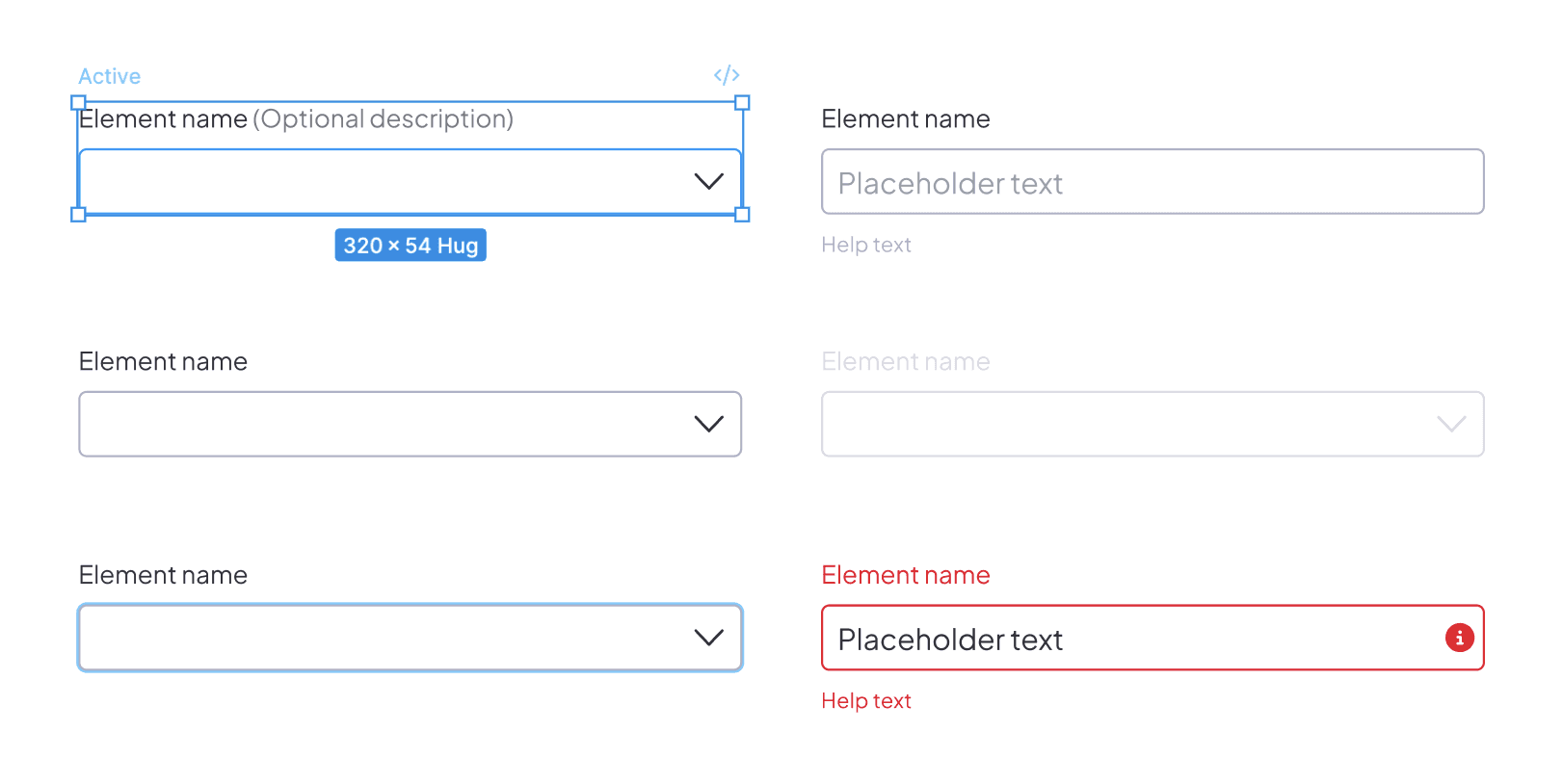
I created Design System to spead up work & stay consistent
I led the creation of a new Design System using the Double Diamond framework. I facilitated a collaborative workshop where I introduced three reference systems and guided the team in defining the core components we needed. We also created a mood board based on key attributes (minimal & high-tech) to clearly define and guide the future visual direction.
The full case study on Signio’s design system will be coming soon.
Design System
Dashboard
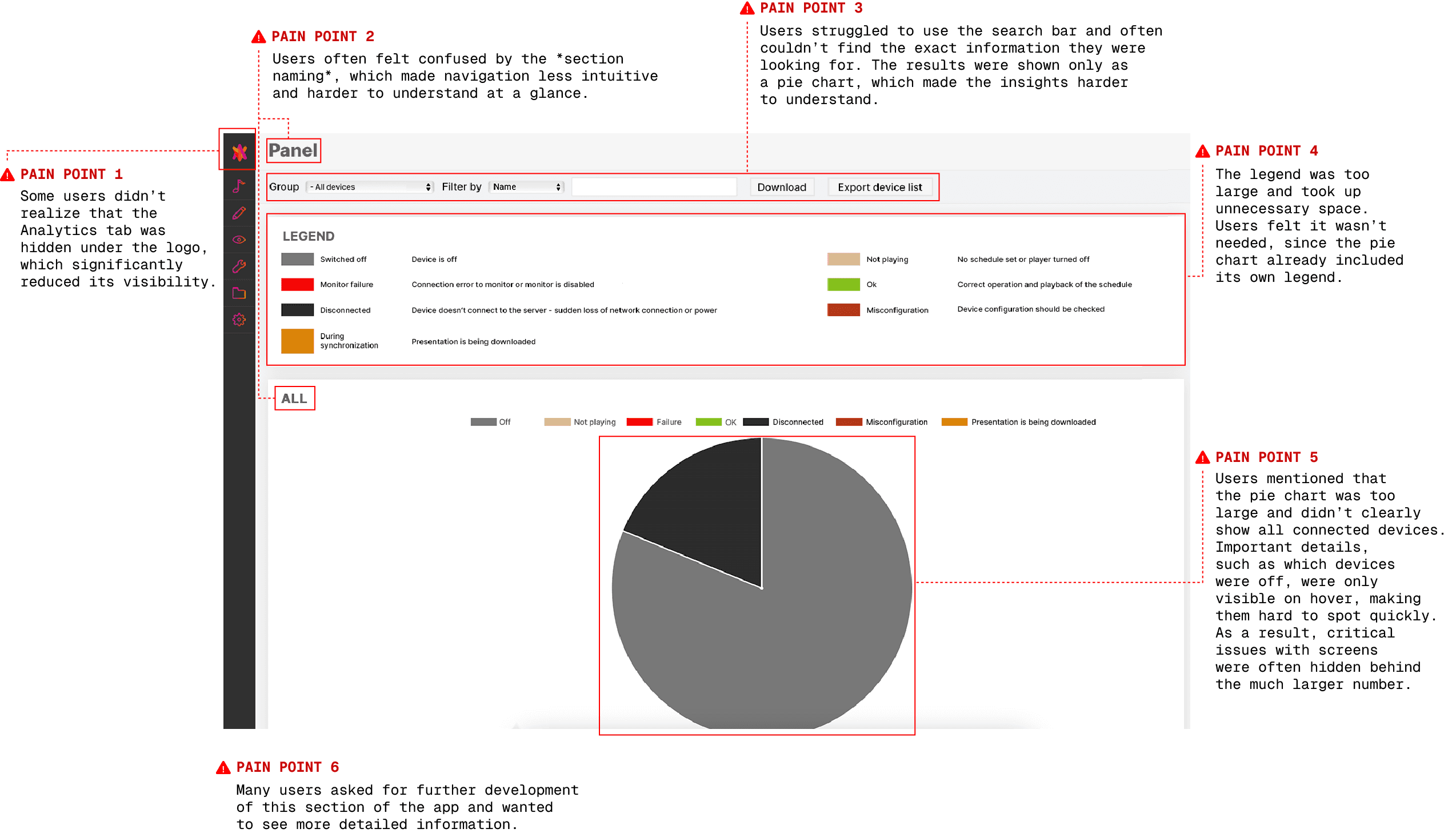
Support team was the first to tell us that we need to expand this section.
Using research insights, the Product Manager and I conducted competitor analysis, then brainstormed and prioritized MVP features to align user needs with business goals. I explored ideas through sketches and wireframes, focusing on key user pain points, and validated solutions through usability testing. After several iterations, the redesigned dashboard was ready for handoff.
User pain points
Competitive analysis
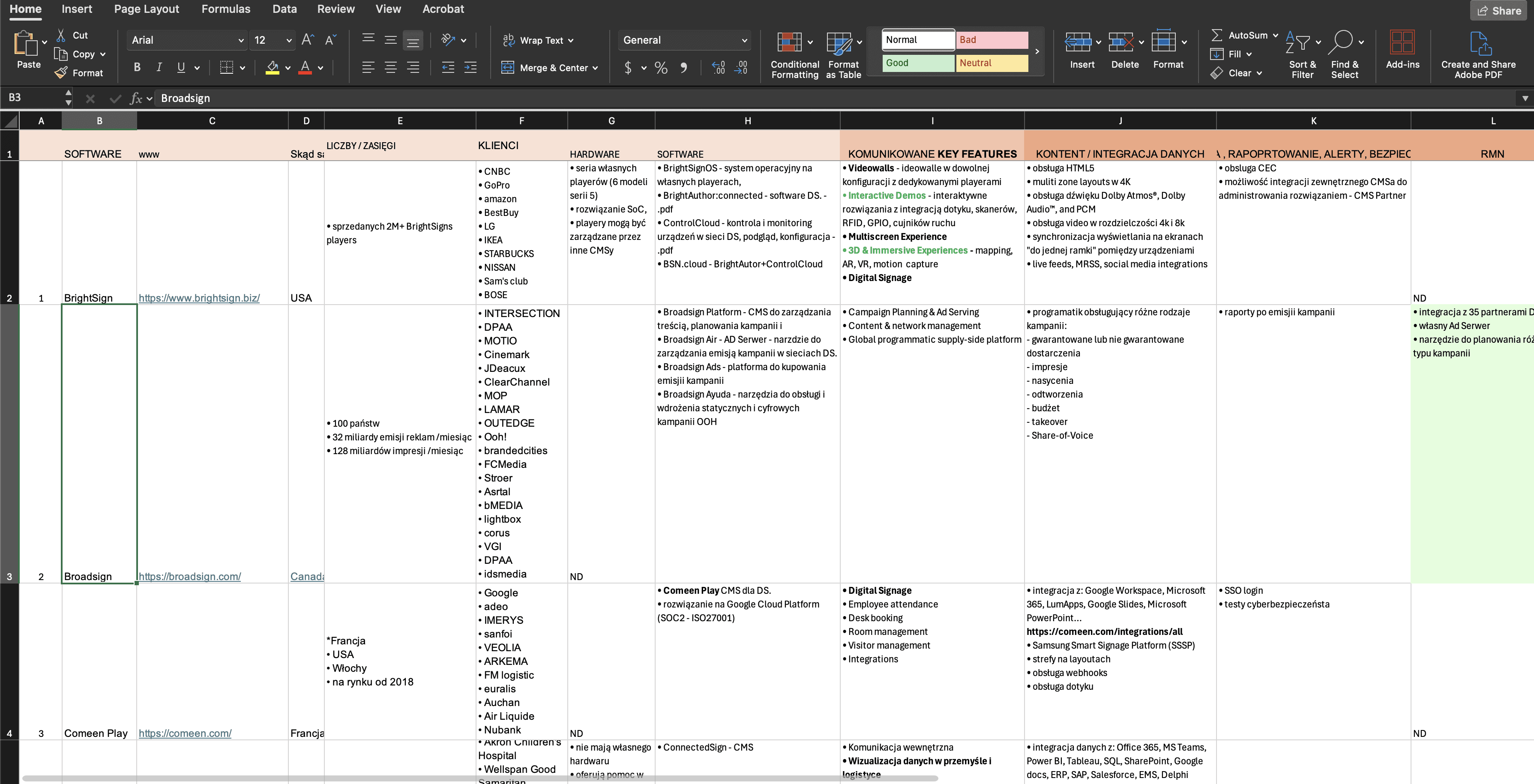
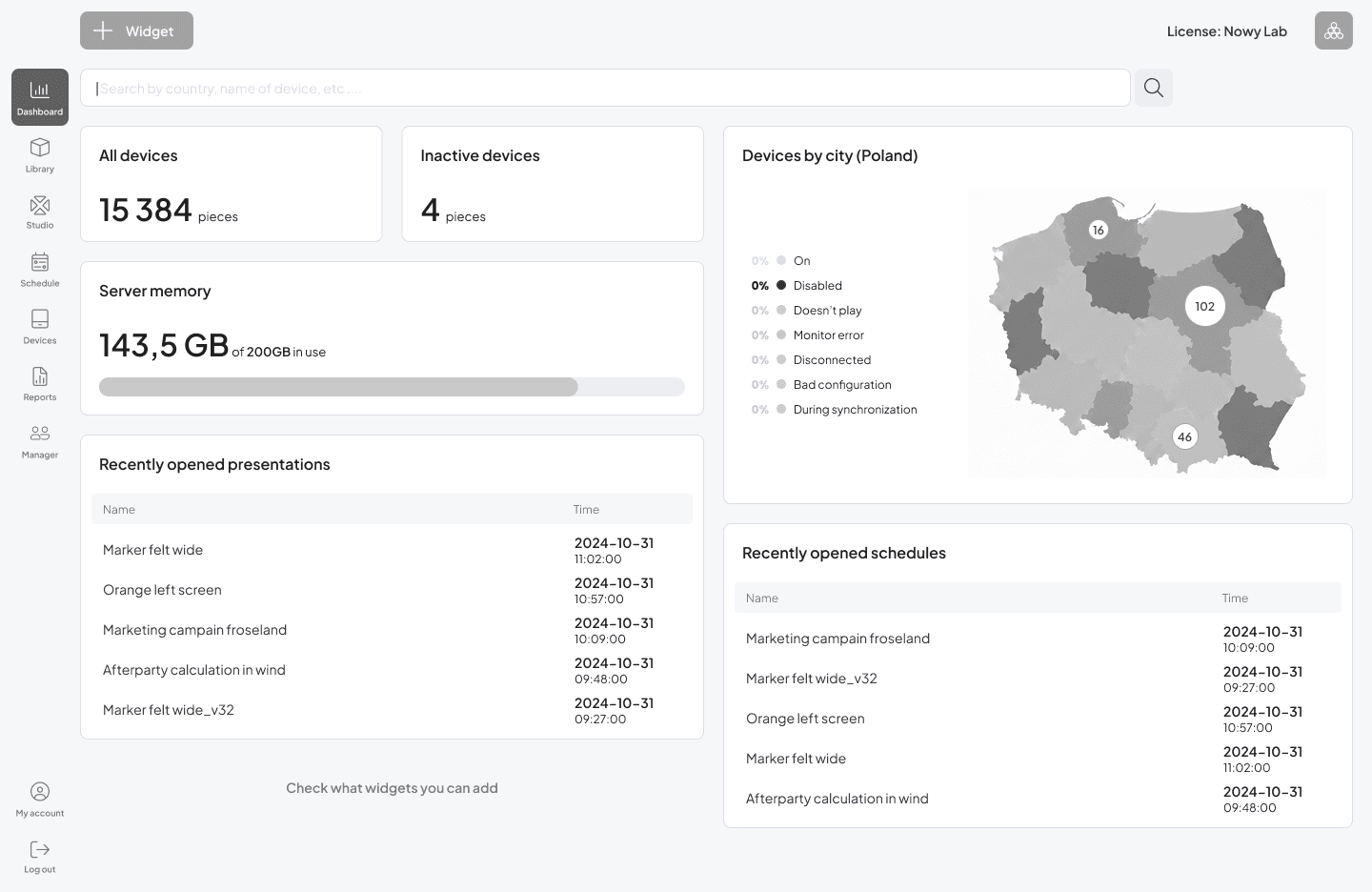
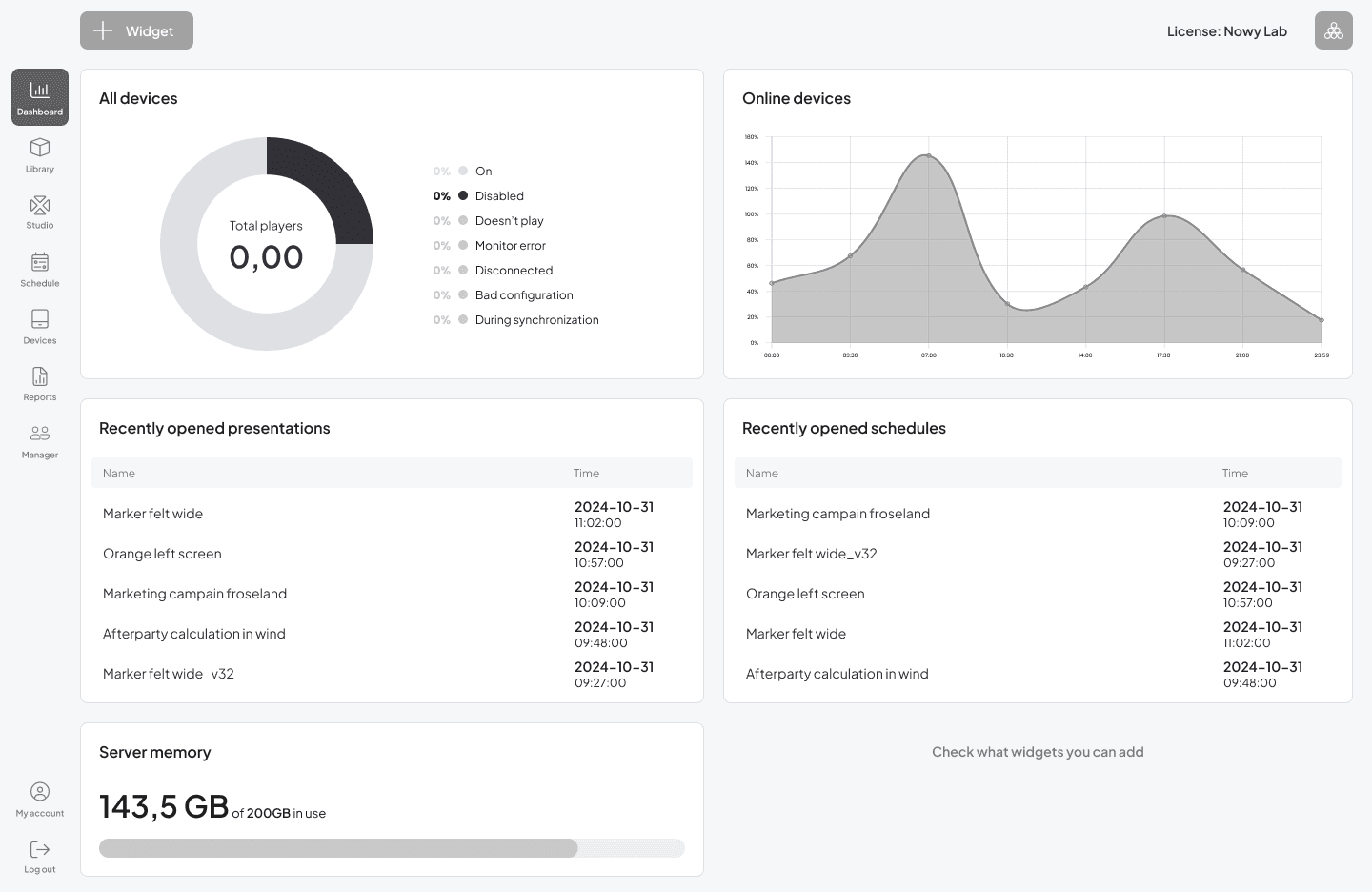
Using our research findings, the team and I brainstormed and prioritized new badges for the MVP to align with both user needs and project goals. Together with the Product Owner, we identified the most important badges to include in the first release. We intentionally kept the MVP focused to avoid overwhelming users and to validate the core functionality first.
Online/ offline status (for devices);
Memory status (for licence);
Personalization (ability to set up sequences & amounts);
Last closing/opening (of sequences & presentations).
I started by creating low-fidelity wireframes and exploring different layout options for badges, views, and component shapes to quickly test ideas.
During design reviews, I usually present several possible flows. This approach helps spark productive discussions with the team and allows us to evaluate different solutions early. Developers are typically familiar with the context before these meetings, which makes collaboration smoother.
After several rounds of iteration and team alignment, I conducted initial usability testing with five participants. This helped uncover usability issues and provided valuable insights on what needed improvement in the flows and functionality.
Low-Fi wireframes
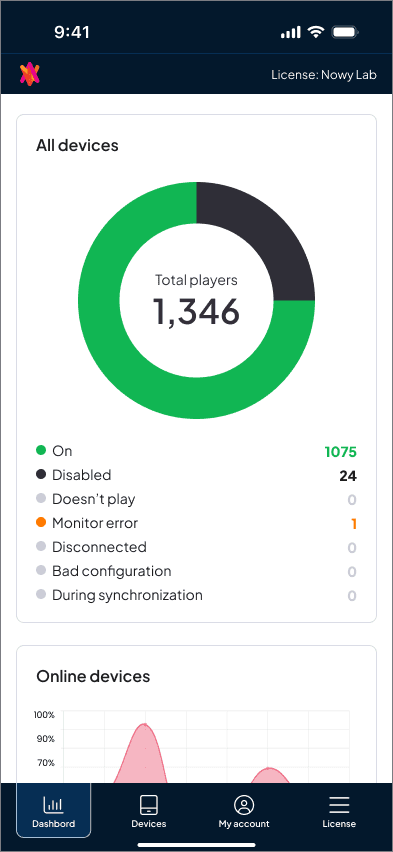
Recognizing the need for on-the-go access, I also redefined the mobile experience. The mobile version was repositioned as a real-time monitoring tool, enabling managers to quickly check device statuses and presentations from anywhere, increasing accessibility and encouraging more frequent engagement.
I engaged the development team early, which helped identify technical constraints upfront and ensured a smoother implementation process.
History of iterations
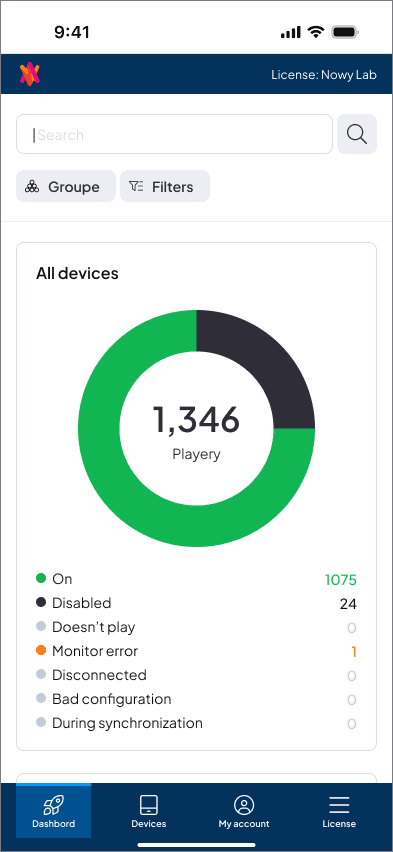
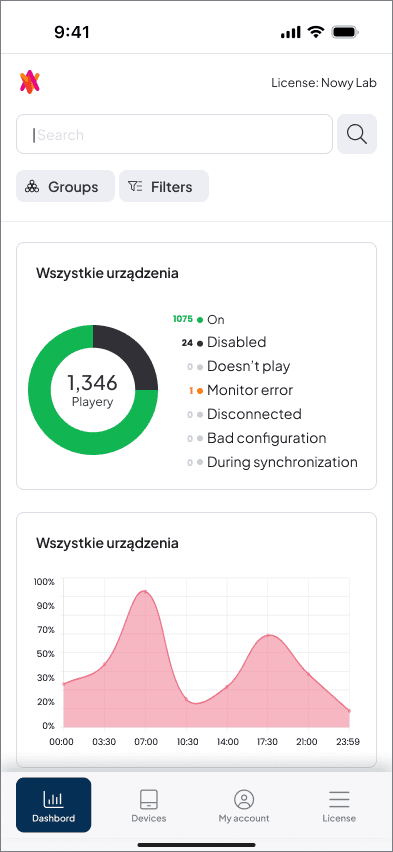
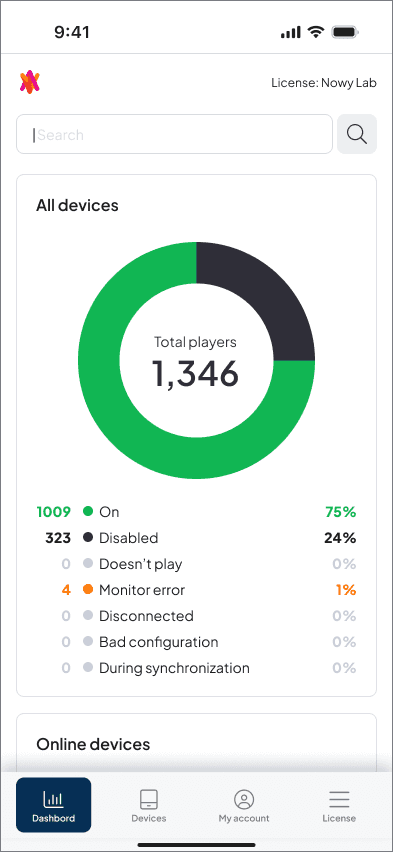
Release 3.0
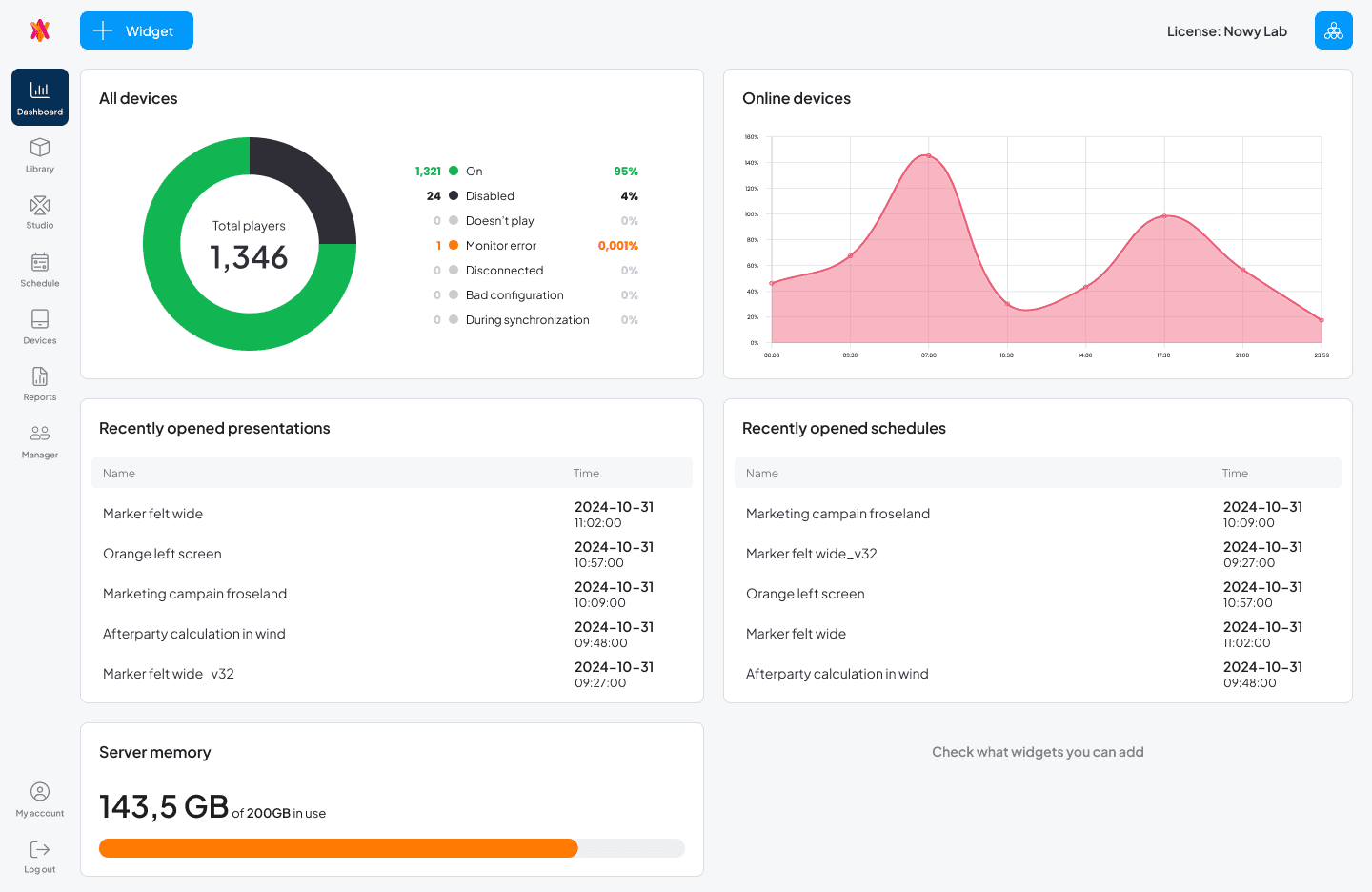
These updates drove a +53% increase in daily active users and +86% growth in monthly activated users.
Navigation
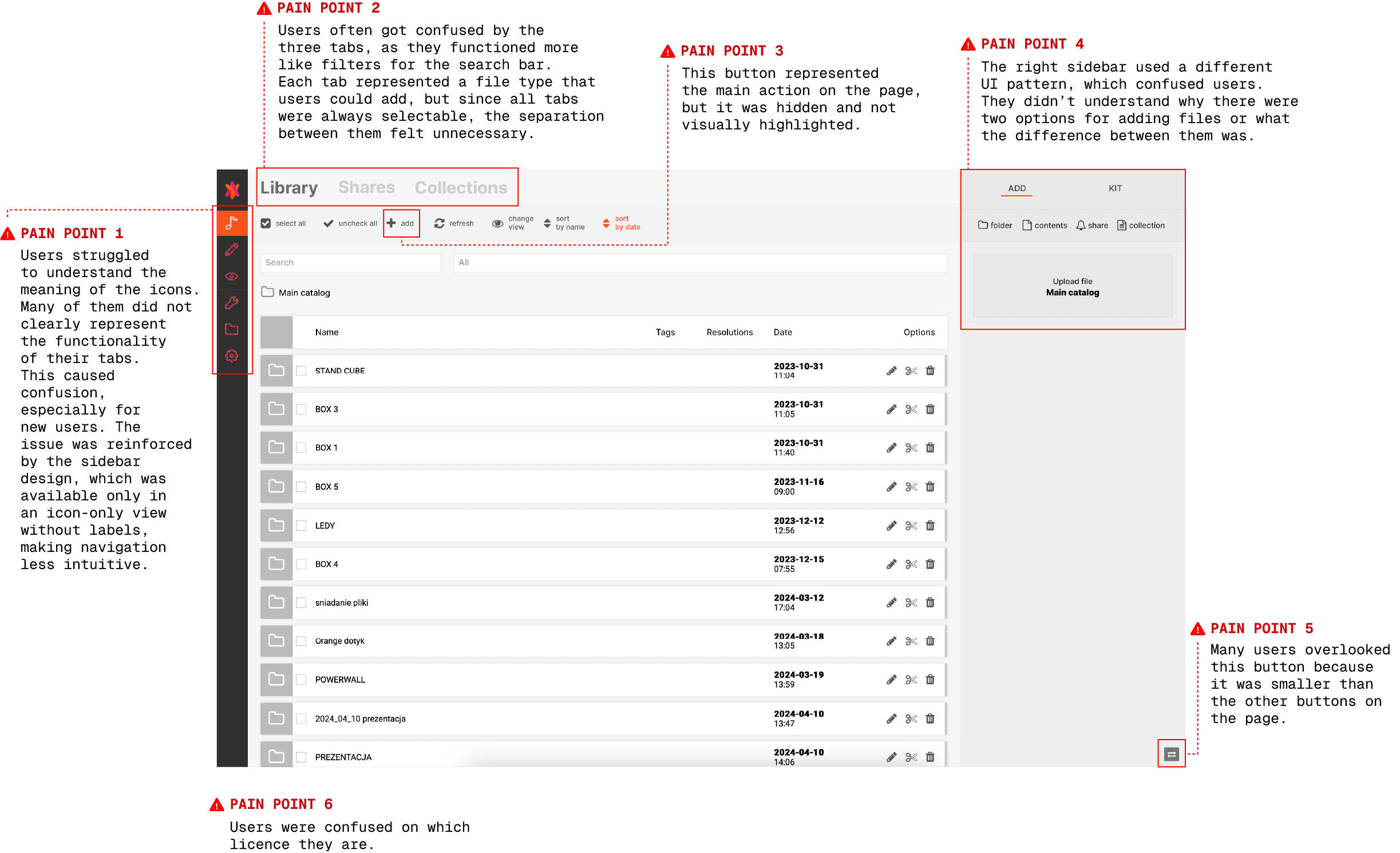
Global Navigation Issues.
Navigation was one of the key (IA) information architecture challenges in Signio. Through in-depth user interviews, I discovered that different user types interacted with the product in very different ways, which led to cluttered tables and inconsistent workflows across sections.
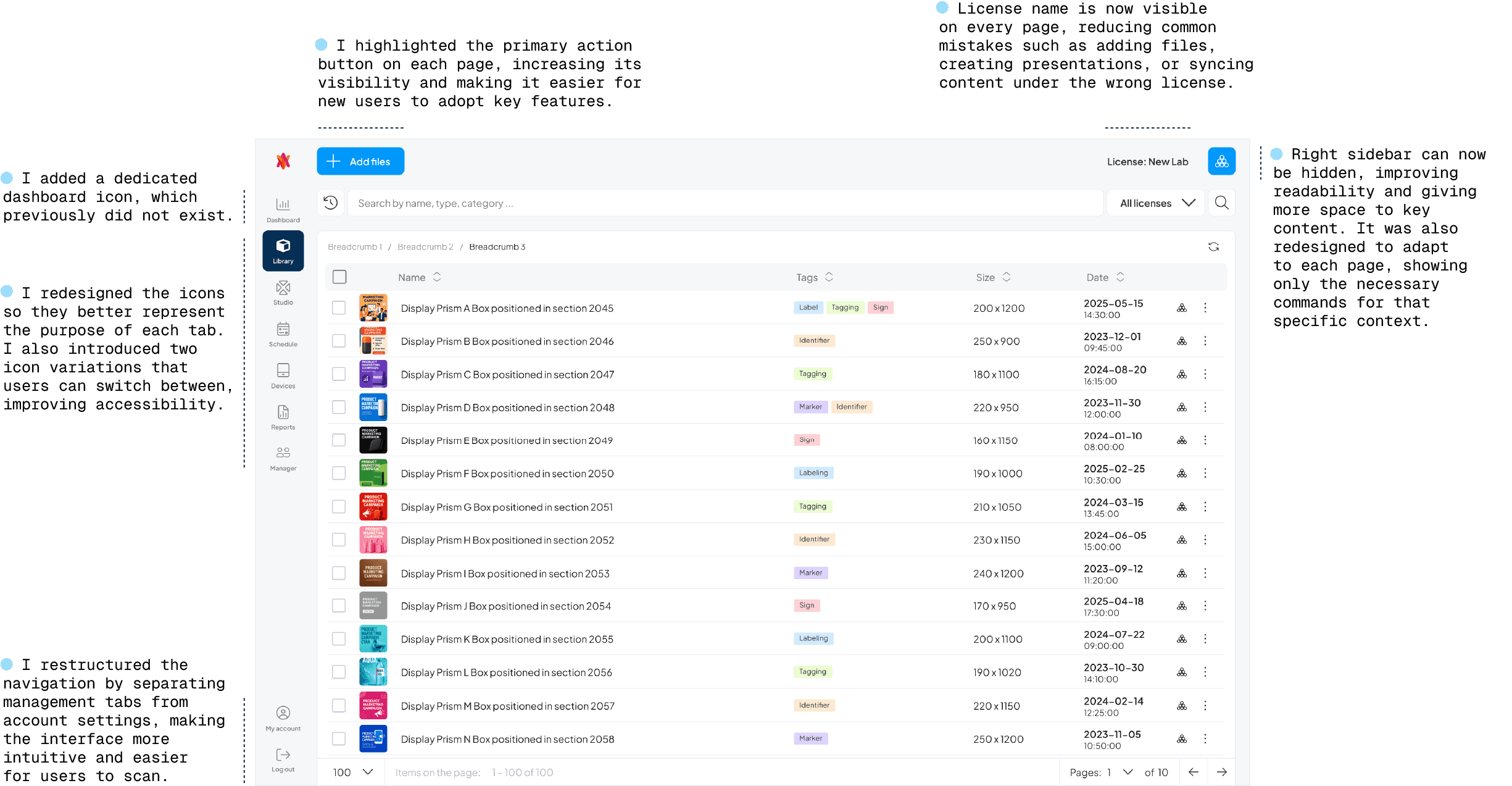
To address this, I focused on identifying the primary action on each page and designing the interface to clearly highlight it. I also restructured the navigation by separating management-related tabs from profile and account settings, making the structure more intuitive and easier to scan.
Additionally, I introduced a dedicated license management menu to increase user awareness of their current plan and allow faster upgrades or changes. The right sidebar was redesigned to adapt to each section, displaying only relevant features and reducing confusion caused by unnecessary options.
This restructuring simplified navigation, clarified key actions, and made the overall experience more predictable and efficient for users.
User pain points
Release 3.0
I used RITE (Rapid Iterative Testing Evaluation) user research. Pairing with Product Owner, we created concepts that we tested with one user, captured the findings, iterated on, and then tested with another user, and so forth. This iterative testing method allowed us to quickly capture findings and make changes to the designs while being in constant communication with our customers.
Sidebars 3.0
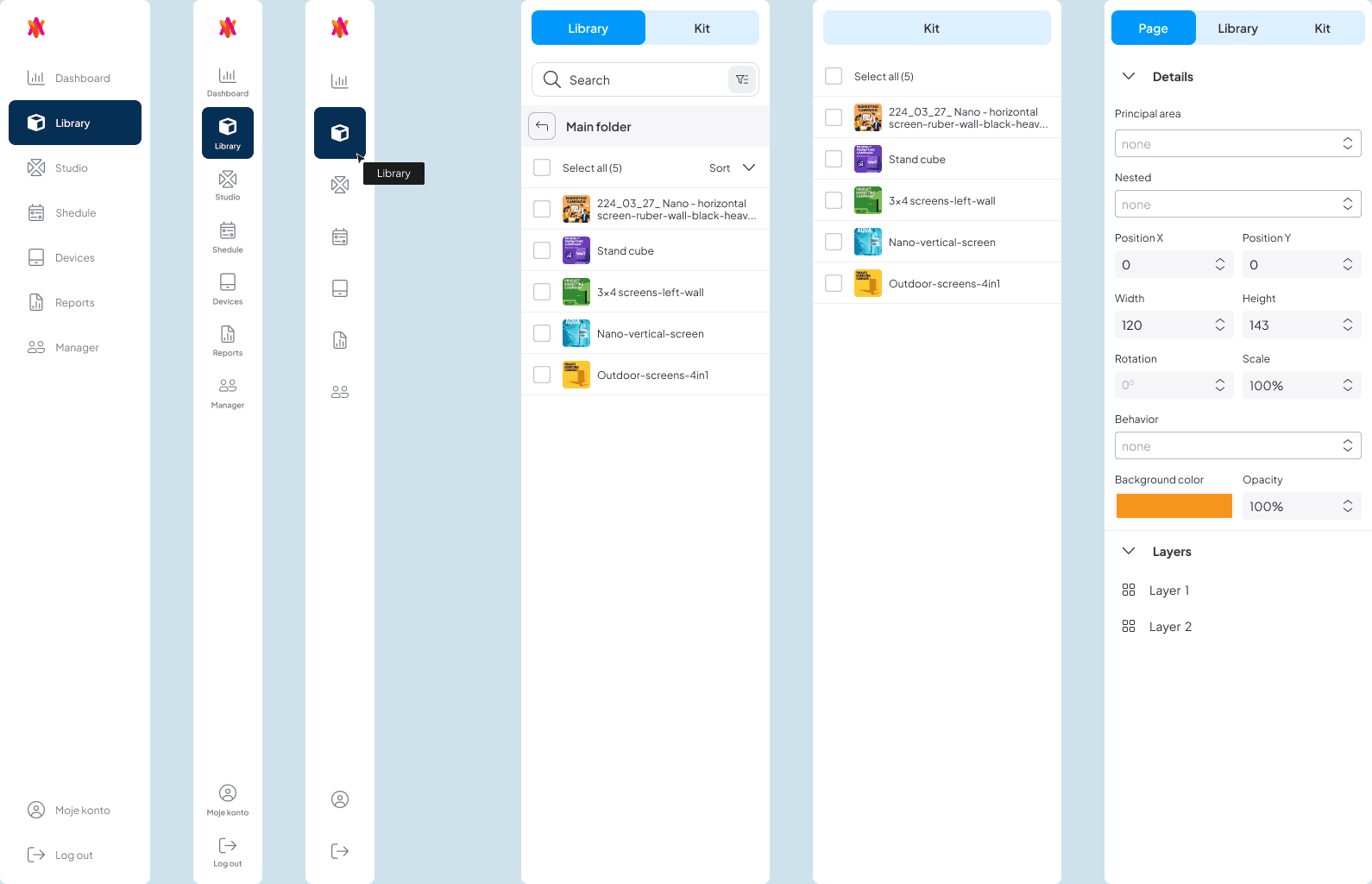
After Sidebars redesign, usage of the main action buttons increased by 20% after making it more visible.
Searching engine
Creating a consistent search experience.
After the research, I discovered that each tab in Signio had its own search engine with different logic. This created confusion for users. When they switched between tabs, the search worked differently, which often caused frustration when trying to find files, devices, schedules, or presentations.
After discussing this with the product owner, manager, and head of the development team, we agreed that the search experience should be consistent across the product. Using the same logic in every tab would help users build a clear mental model of how search works in the app.
Based on research insights, I reviewed the main user pain points and organized a workshop for the team using the "How might we…" exercise:
How might we highlight the characteristics that help users find files, devices, schedules, or presentations faster?
How might we reduce the time users spend searching for previous results?
How might we expand the functionality of the searching engine?
How might we reduce the space taken by the search bar?
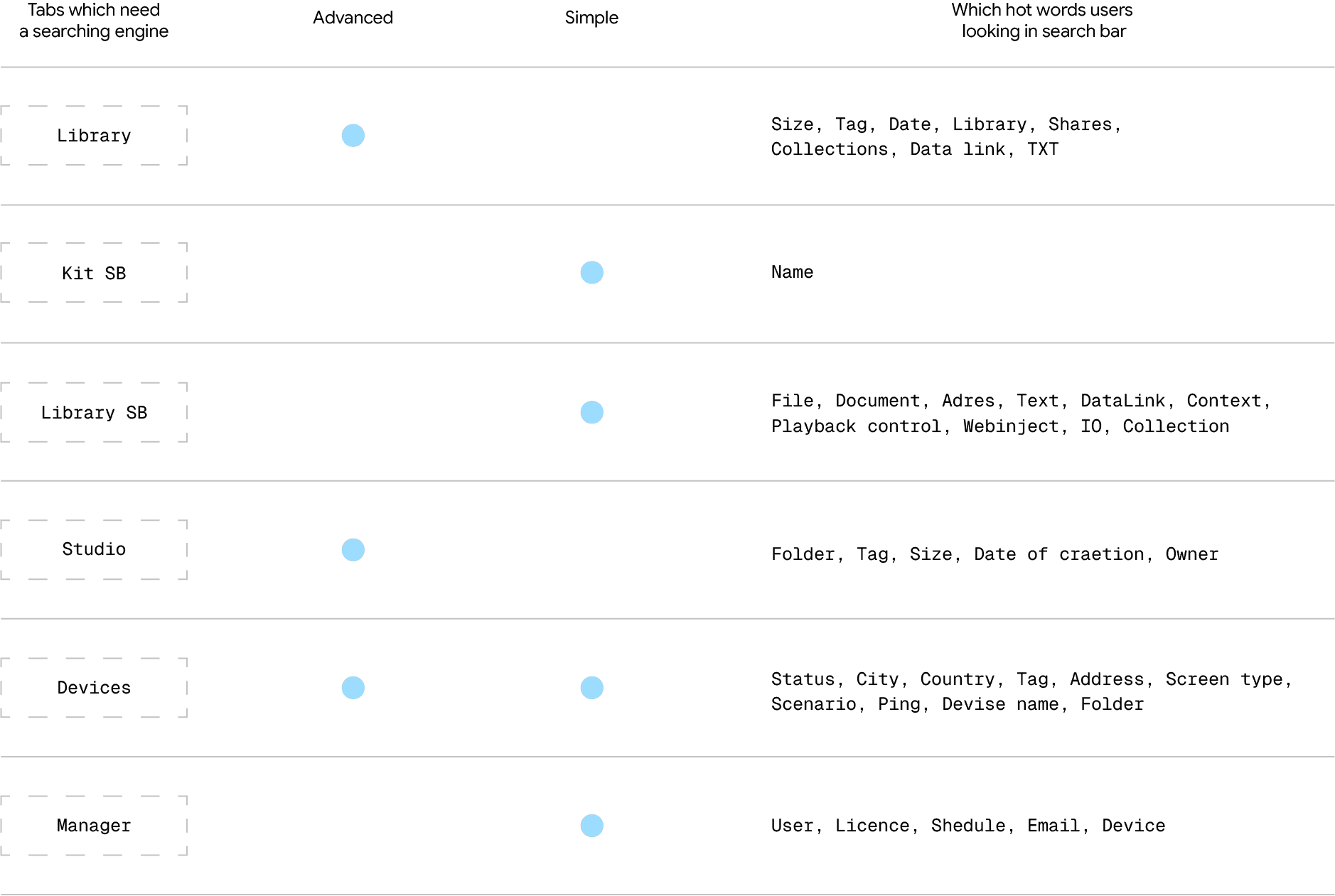
After the discussion, we decided to introduce two types of search: advanced and simple search. Advanced search would be used in the main tabs, while simple search would appear in pop-ups.
To support this decision, I created a scheme showing where each type of search (advanced or simple) should appear across the product.
Scheme
I developed a concept and tested it with 5 users. They were asked to find multimedia. During the test, I measured the time it took to complete the task and asked participants to rate the difficulty of using the search engine (easy, normal, or difficult).
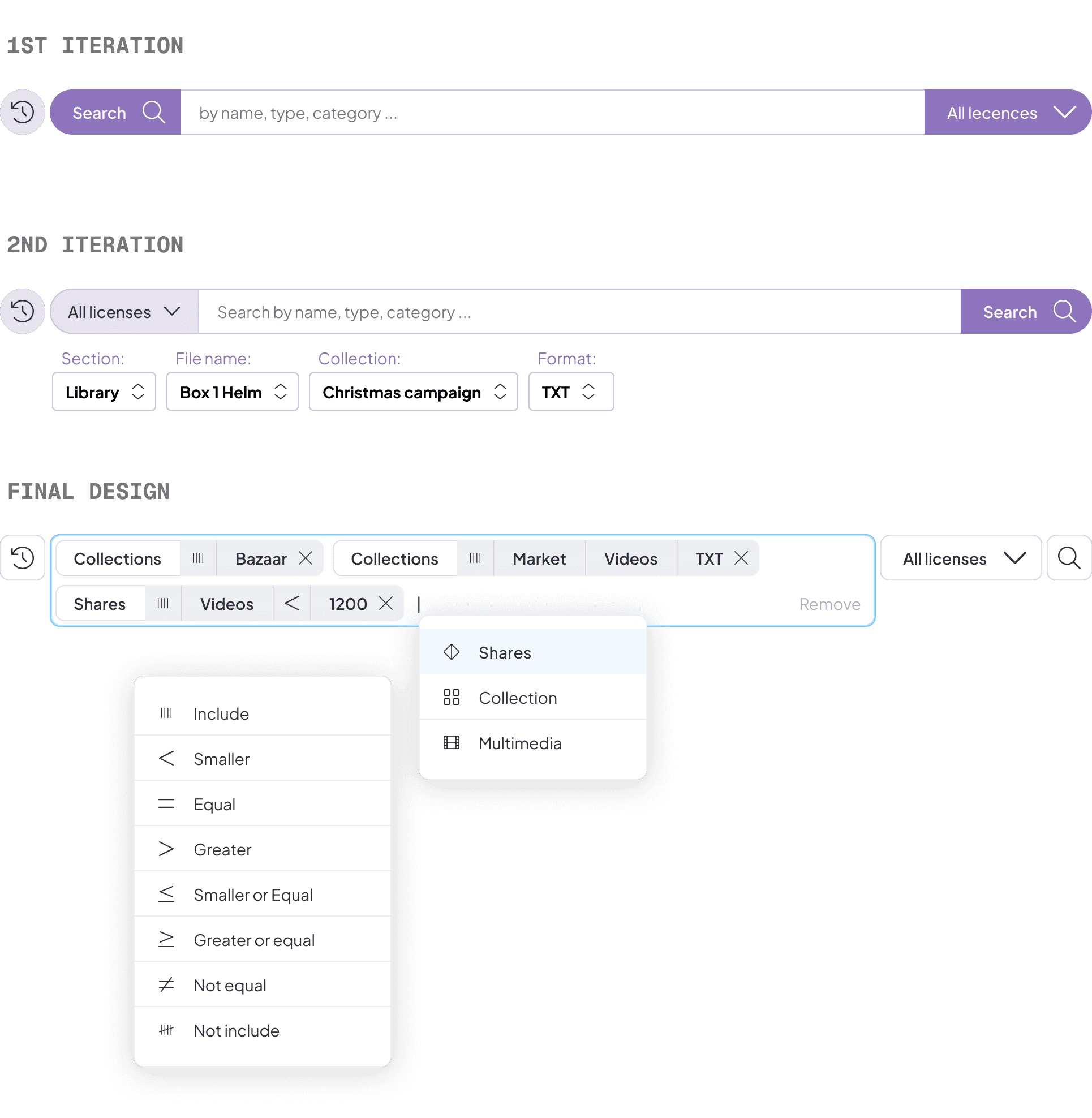
The unified search logic helped users build a clear mental model of how search works in the product. Since the search behavior became consistent across all tabs, users were able to find elements faster and spend less time searching.
Global table
No more chaos on tables.
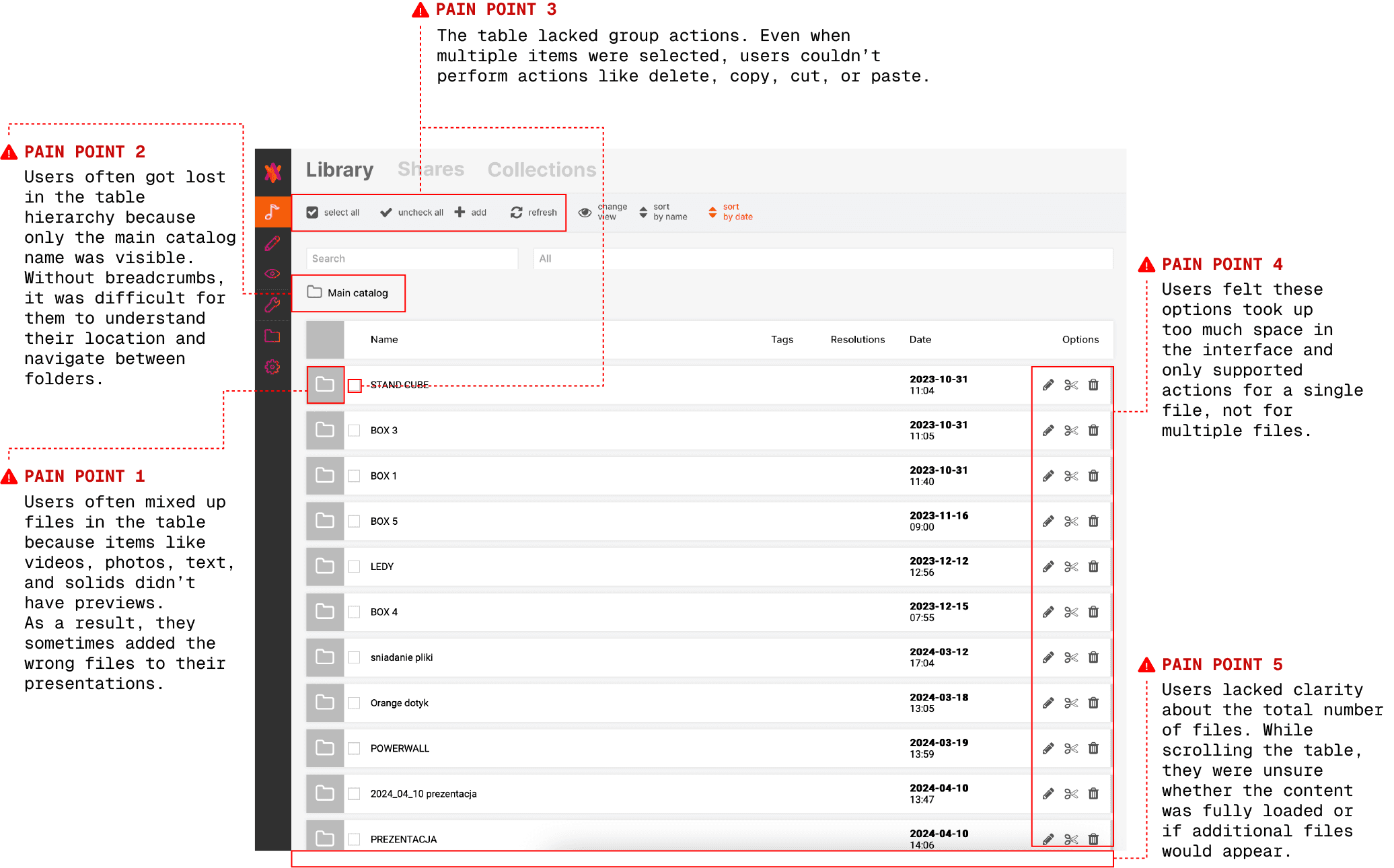
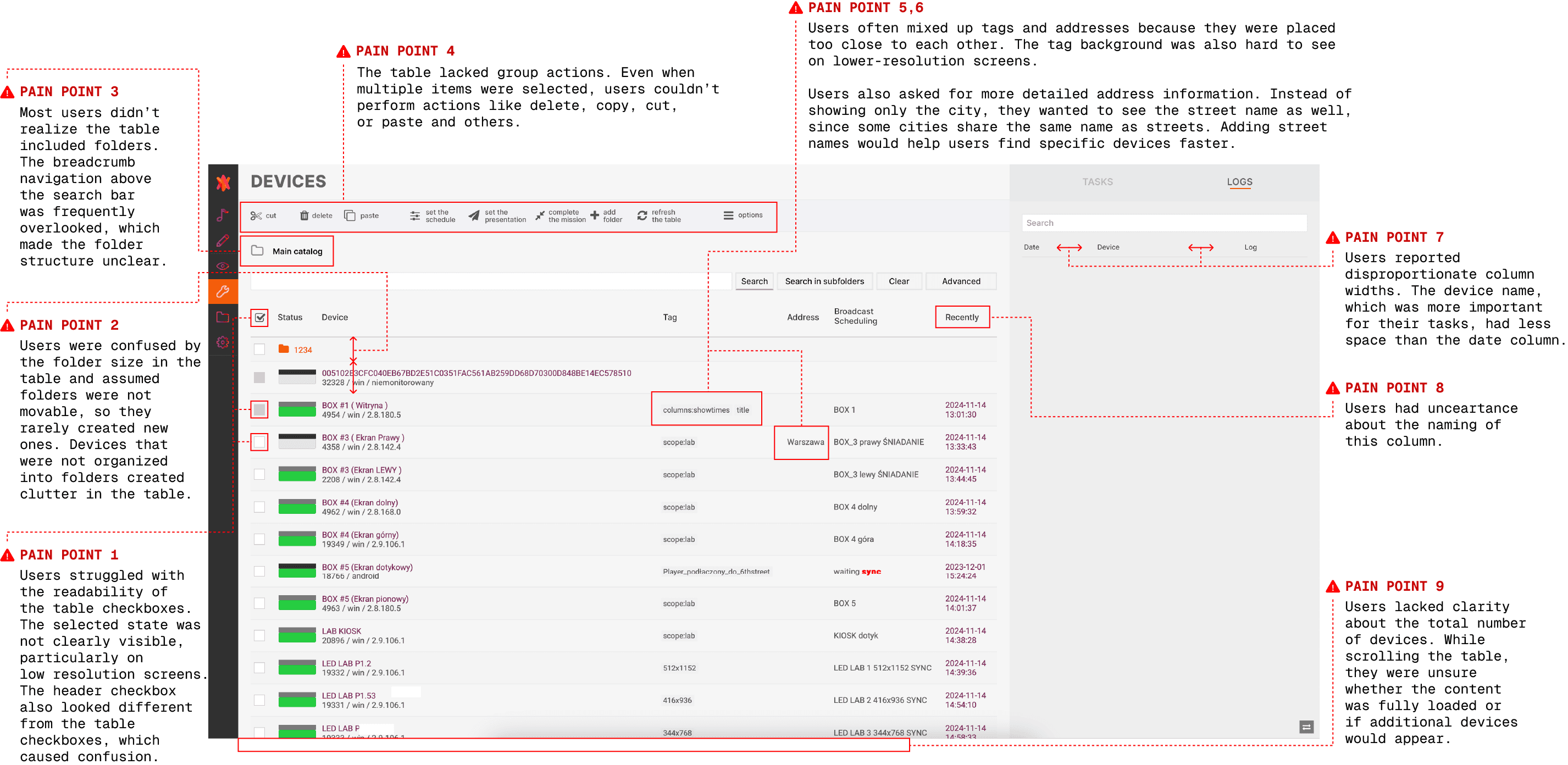
I started the redesign by analyzing user feedback collected during UX reviews. I focused on two of the most complex tables and reviewed both user feedback and my previous heuristic evaluation.
I noticed that tables across the product had been built in an inconsistent way — each one had a different structure and layout. There was no clear place for breadcrumbs, and elements around the table took up too much space. Users said they were mainly interested in the table results, but the interface limited how much data they could see at once.
First important table with users feedback
Second important table with users feedback
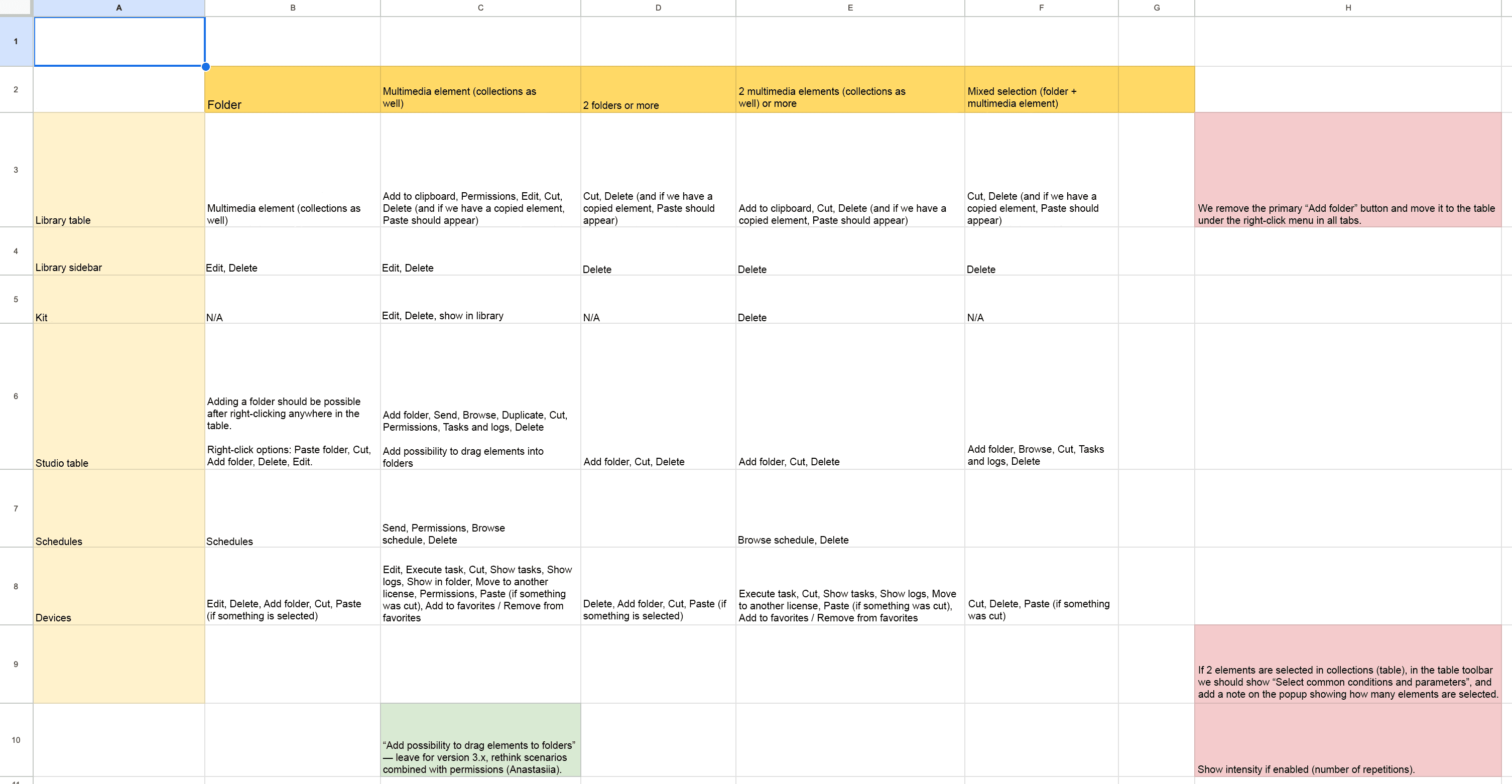
Another issue was that right-click actions were not supported. Most actions were placed above the table, which created extra rows and reduced the visible workspace. After analyzing actions across different pages, I grouped them and moved the most relevant ones into a right-click content menu, allowing users to access actions directly on table items.
Right-click on a file in the tables
The information architecture was slightly changed, and the number of devices included in the license is now visible. I divided the screen into two canvases to highlight that these are two independent tables.
The right sidebar can now be hidden. To improve readability, I also reworked the spacing and layout, giving more space to the data users needed to see most. I added a favorite icon that helps highlight specific devices for repeated checks of problematic ones. The row with options was divided into two groups: actions that apply to a single row (available through right-click) and actions for multiple items, placed at the top of the table for group operations.
I also redesigned the tag system, introducing color separation to improve visibility and make tags easier to distinguish.
Because the redesign needed to move quickly, I used elements from the Carbon Design System as inspiration. I analyzed its table patterns, selected components that fit Signio’s needs, and adapted them to the existing UI.
The solution was iterated with 12 users, which helped refine and polish the final design.
Release 3.0 tab "Devices"
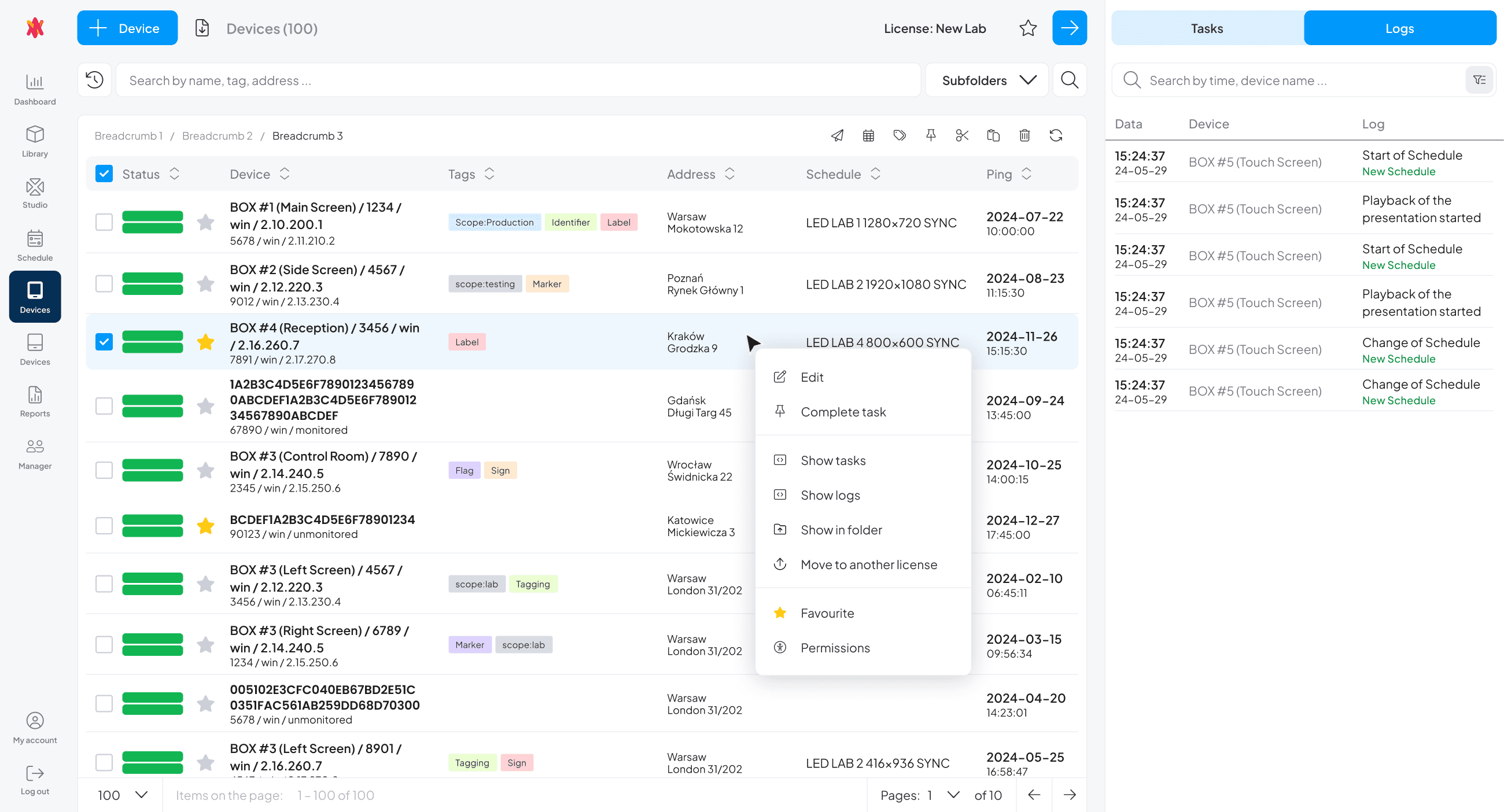
The Device tab redesign improved table consistency across the product and reduced visual clutter, allowing more data to be visible on the screen. Actions became faster to access through right-click interactions, which streamlined common workflows. The updated tag system and clearer structure also improved readability and navigation in complex tables.
Canvas
Shape the views on the screen. In Signio, users can create presentations or mini apps for both standard and touch screens.
To display content on the screen, users must first create a presentation or a mini app. In Signio, this process is handled within a dedicated tab.
I began the redesign process by analyzing insights gathered from previous research. While working on this section, I also used Amplitude to evaluate feature usage and understand whether users were engaging with all available functionality.
Findings from in-depth user interviews and task-based exercises revealed that several features existed but were either not understood or not used. In many cases, users were unaware of these features or unclear about their purpose.
I organized the collected data into key stages of the user journey, including: starting the presentation creation process, working with a presentation, and interacting with supporting modals.
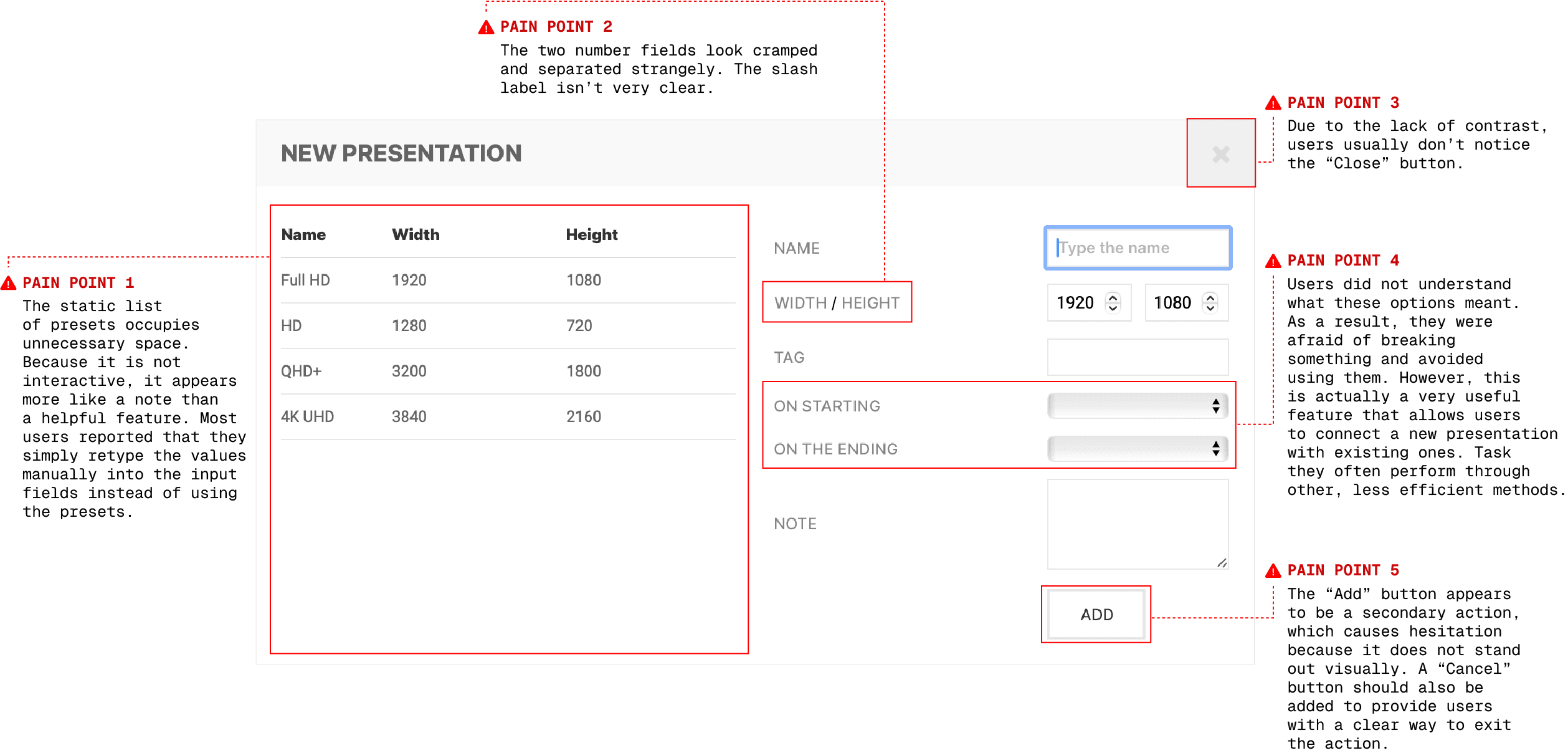
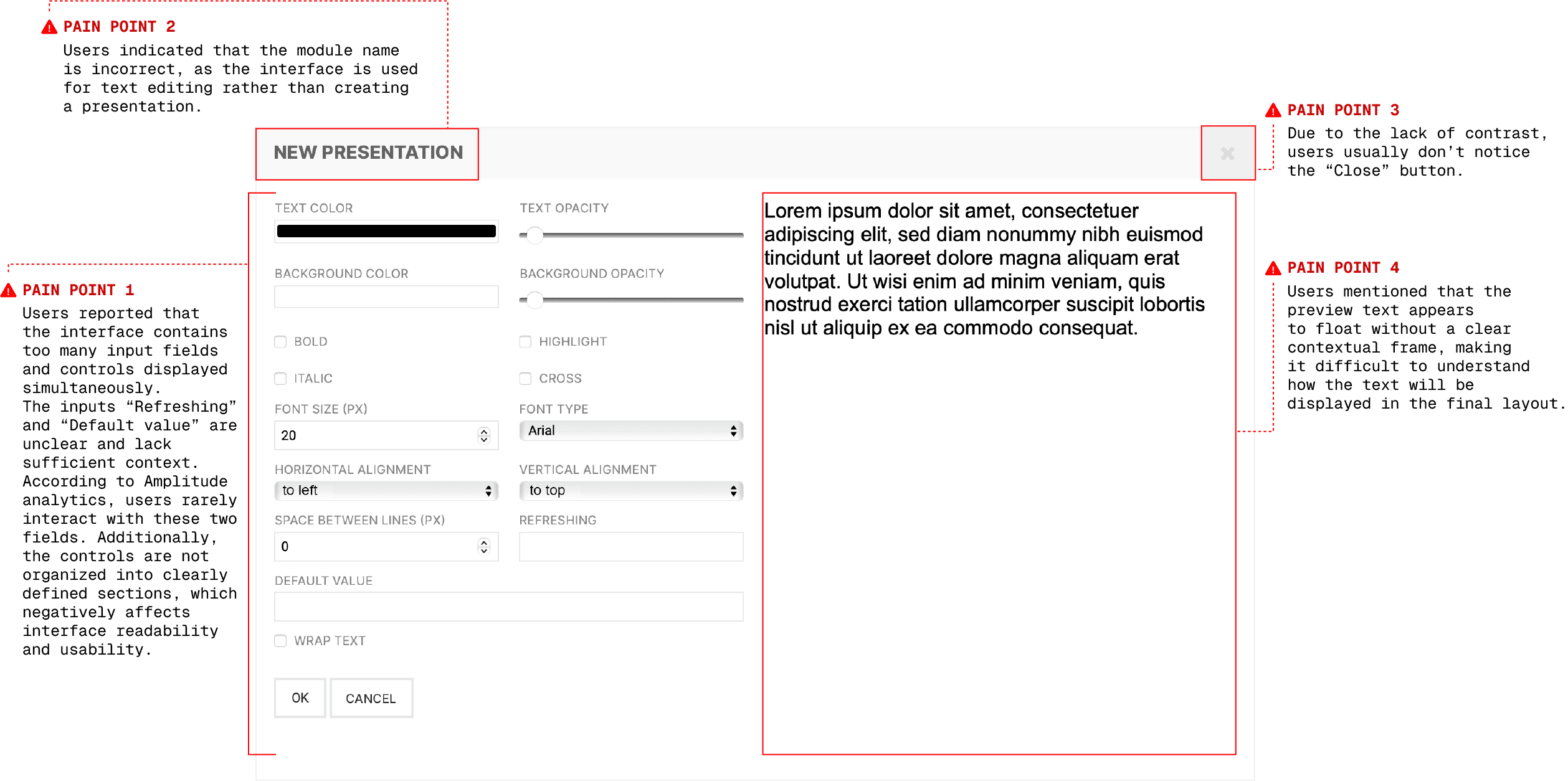
The presentation creation modal was identified as an area requiring improvement. Key issues and opportunities are outlined below.
Every presentation starts from canva creation
Release 3.0
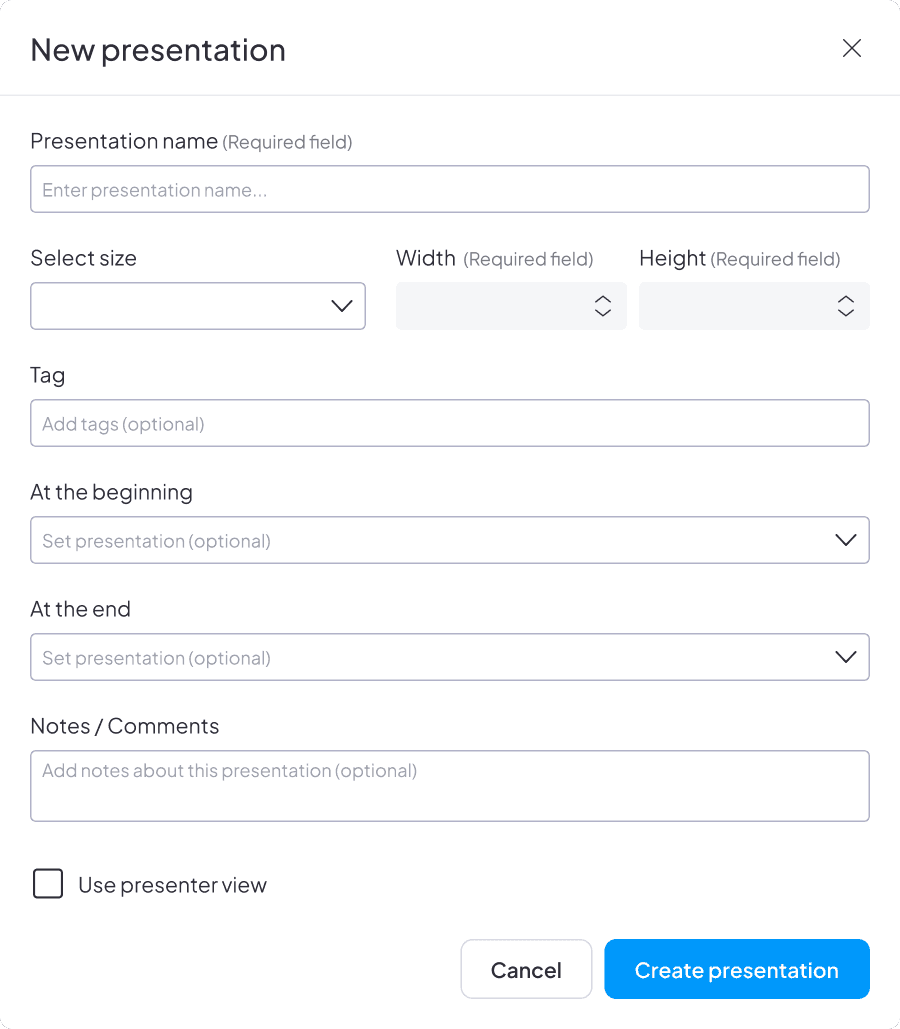
This tab had issues with grouping related features on the screen, which made navigation and feature discovery difficult for users.
To address this, I organized a workshop involving the team and two users. Based on prior user feedback, we conducted a card sorting exercise to prioritize and logically group features. We then used a Crazy 8s exercise to explore and validate the most effective layout for these feature groups.
Looking ahead, we also considered future scalability. Upcoming releases were planned to support more complex content structures (e.g., tree-based organization on the canvas), enabling users to build more advanced applications. After consulting with the business team, we aligned on a structure that would improve file organization while reducing the time and cost of custom development.
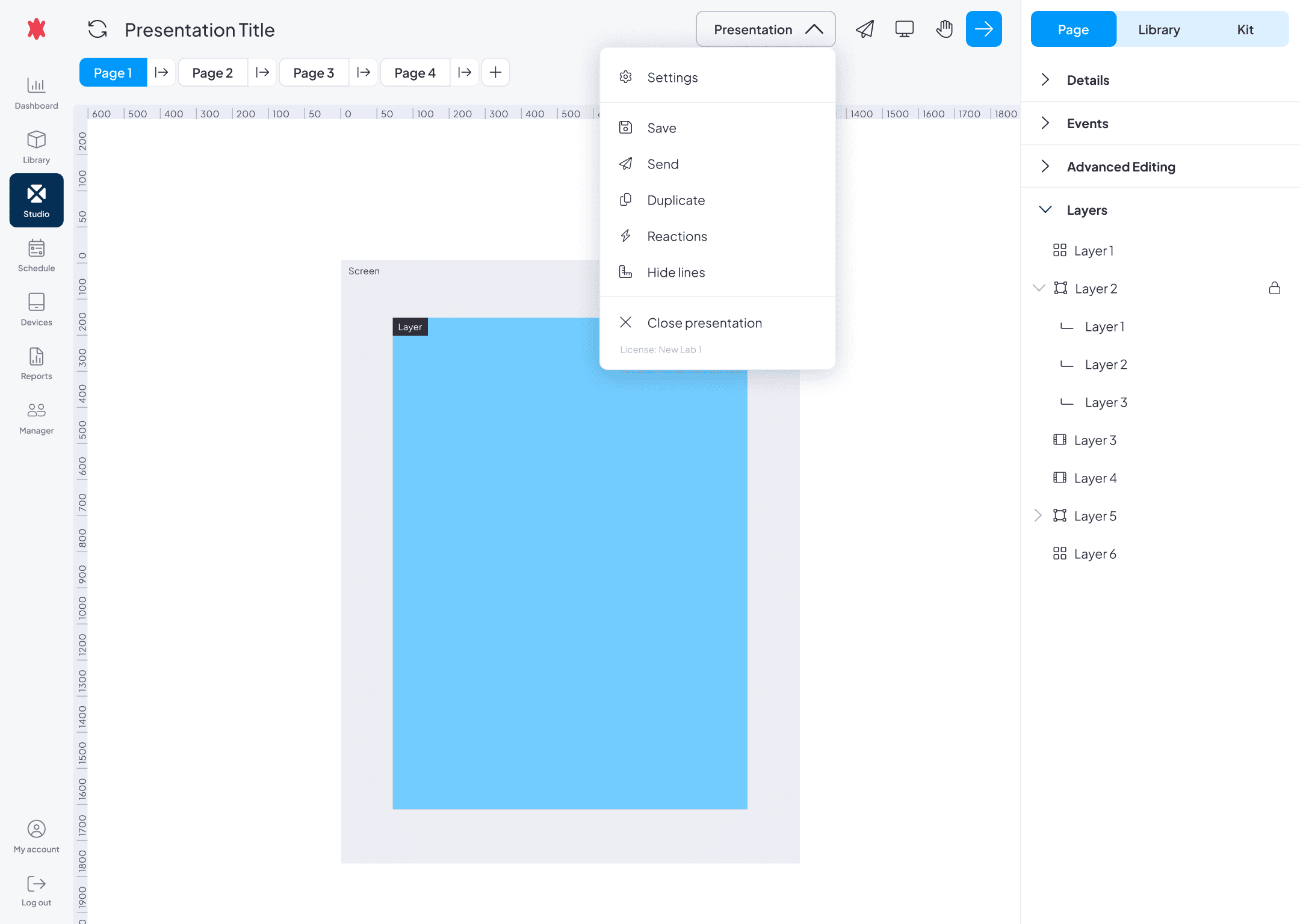
As a result of the redesign, the top app bar was simplified by removing a large number of buttons. Presentation-level settings were consolidated under a single, easily accessible control, reducing visual clutter while maintaining one-click access.
Page and layer settings were moved to the right side bar, improving layout clarity. The sidebar retained three main tabs, but the ''Add'' tab was separated from the Library. Previously, all added elements were automatically stored in the Library, so relocating this functionality created a more logical and consistent structure. This change also freed up space to better accommodate page and layer settings.
The Layers panel was significantly improved. Users can now clearly see what elements are placed on the canvas, including previews that were previously unavailable. This addresses earlier usability issues where users struggled to distinguish between text, synchronization links, and animations. Additionally, layer grouping is now visually represented, improving structure and comprehension.
Key feature enhancements included the ability to pan the canvas and preview animations directly on the screen, both of which significantly improved usability and workflow efficiency.
Canva
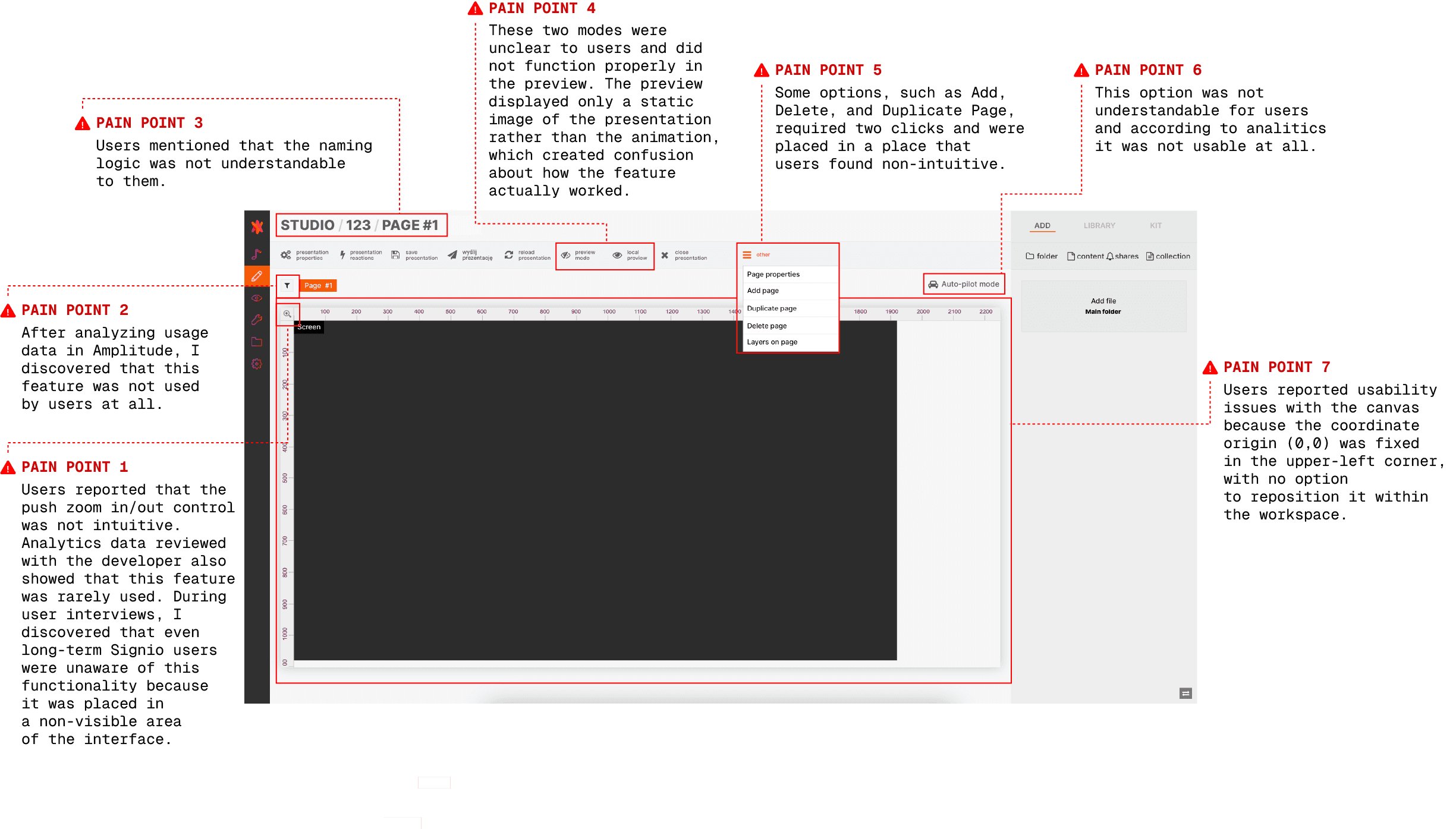
Release 3.0
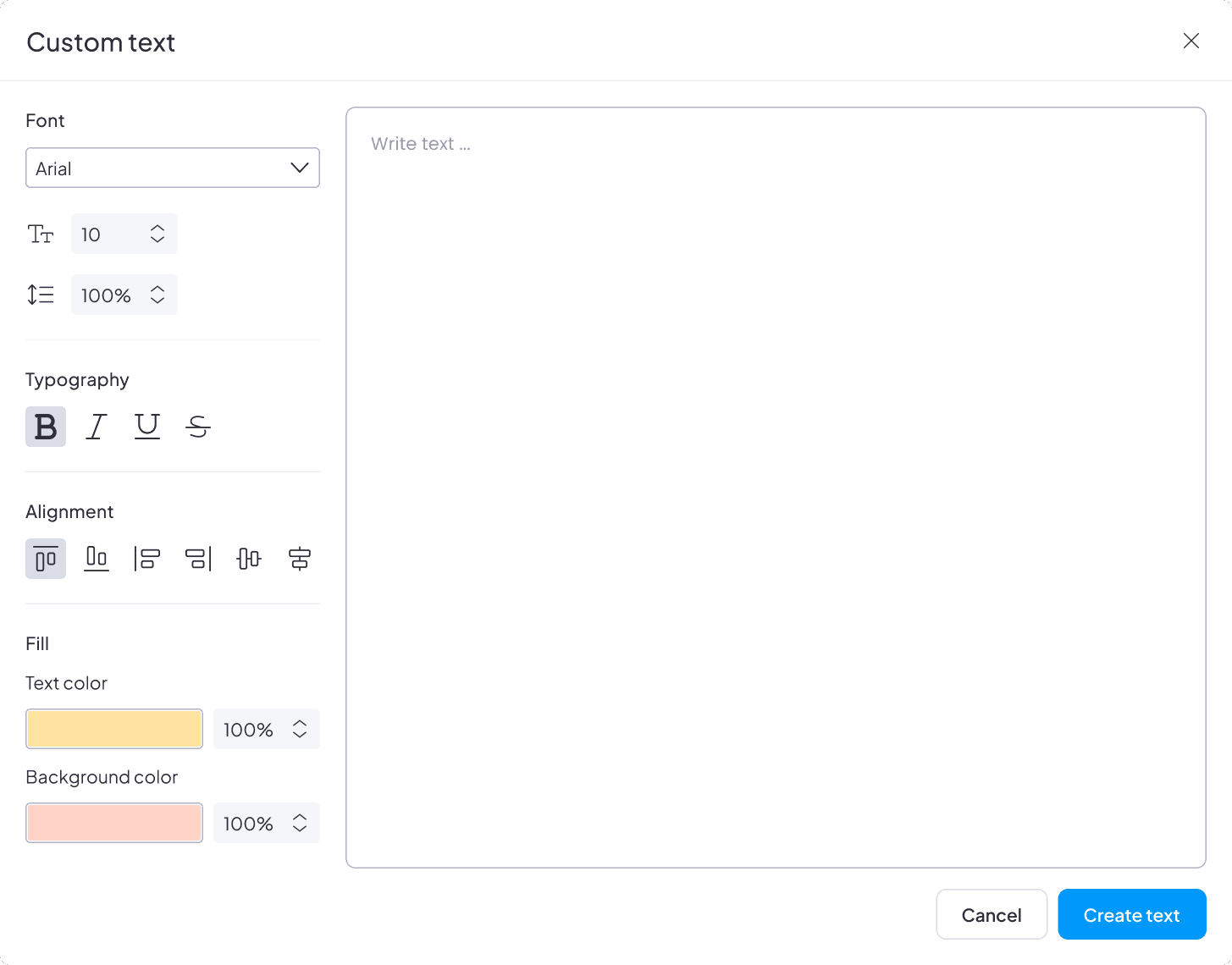
The modal for creating custom text also required usability improvements.
Extra modal
Release 3.0